
Documentation
Pricing and Validation
Calculate prices from design data and prevent invalid products from reaching checkout.
The core pricing engine is part of the main plugin workflow for both 2D and 3D. The visual reusable Pricing Rules editor is a premium module.
Who this is for
Store managers, estimators, and production teams
What you will achieve
A customer sees a predictable price and cannot order a design that violates production constraints.
Before you begin
- Define the WooCommerce base product price.
- Create printing methods and color compatibility.
- Calibrate physical dimensions when size-based rules are required.
Understand the price layers
- WooCommerce product base price.
- Printing-method and color extra prices.
- Reusable conditional pricing rules.
- Object or catalog asset extra prices.
- Quantity and any configured stepped or percentage adjustment.
Avoid this: The storefront preview is informative. The server-side pricing snapshot remains authoritative for cart and checkout.
Choose a pricing handler
Where to go: Commerce > Pricing rules > Add rule
- Layers amount: price from the number of customer objects.
- Text length: price from character count.
- Text lines: price from line count.
- Used colors amount: price from distinct colors.
- Scale: price from object scale.
- Layer size: price from object width or height.
- Canvas size: price from the view or calibrated canvas dimensions.
Configure scope and matching
- Whole document evaluates all relevant views and layers.
- Current view restricts evaluation to the active view context.
- First matching layer only stops after the first qualifying object.
- All checks must match requires every condition.
- Any check can match accepts one qualifying condition.
- Target object types and view IDs narrow the rule.
Use a condition preset
- Threshold to fixed amount.
- Threshold to percentage of current total.
- Every N units to fixed amount.
- Every N units to percentage of current total.
- Advanced JSON for several custom checks.
Tip: Start with a preset. Use Advanced JSON only after the simple rule has been tested and the required metric is understood.
Attach and order rules
Where to go: Product configuration > Pricing rules
- Create reusable rules in the global catalog.
- Attach only the rules relevant to the product.
- Use clear labels and categories.
- Test combinations because percentage rules may depend on the current total.
- Verify 2D and 3D views produce the same result for equivalent physical data.
Configure validation guards
Where to go: Product configuration > Validation guards
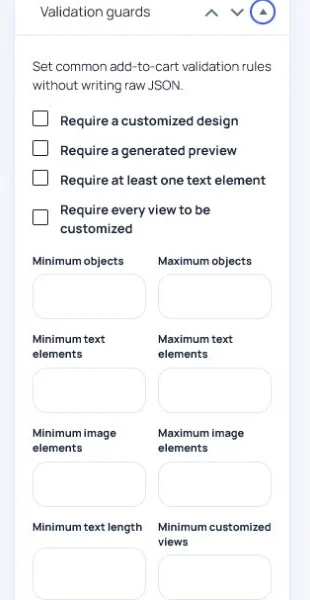
- Require at least one customer object or a completed required view.
- Enforce drawing-area containment.
- Reject width, height, or area above production limits.
- Warn or reject images below the minimum effective DPI.
- Restrict printing methods, colors, elements, or variations.
Tip: Write customer messages that explain how to fix the design, not only that it is invalid.
Run a pricing test matrix
- Zero, one, and several layers.
- Short and long text.
- One and several distinct colors.
- Just below, exactly at, and just above every threshold.
- Minimum and maximum physical size.
- Quantity changes in cart.
- Cart refresh, checkout reload, coupon, tax, and order creation.
Need to verify the result?
Run Asuka Designer > QA & Diagnostics, then repeat the customer workflow in a private browser window.