
Documentation
Designs, Shapes, and Shared Assets
Create reusable visual catalogs, organize them, and expose only suitable assets to each product.
Shared libraries prevent the same artwork from being embedded repeatedly in product configurations. They also make visibility, price, and production changes easier to maintain.
Who this is for
Catalog managers and artwork teams
What you will achieve
A curated asset library that is easy for customers to browse and safe to reuse across products.
Before you begin
- Prepare customer-safe titles and categories.
- Verify that you own the rights to every asset.
- Optimize raster and SVG files before upload.
Use the Asset library hub
Where to go: Asuka Designer > Assets
The hub shows counts and opens the dedicated libraries. Import or export shared data before large migrations.
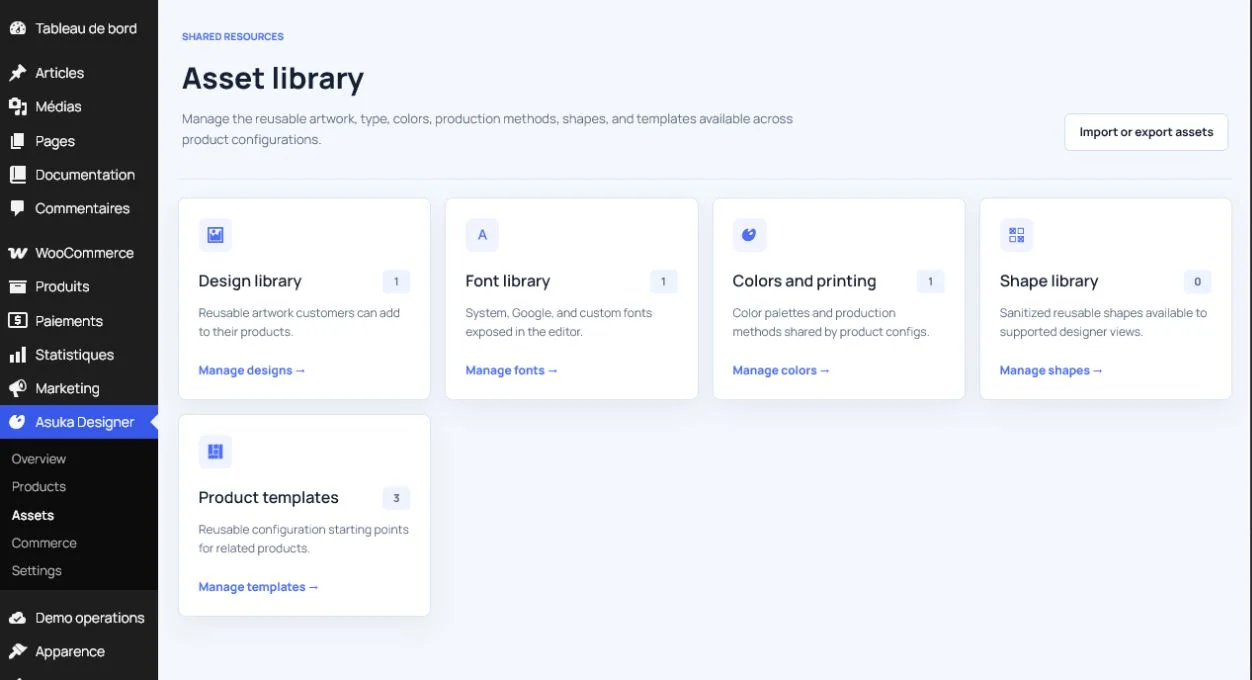
- Design library for reusable artwork.
- Font library for typography.
- Colors and printing for production-aware palettes.
- Shape library for reusable vector elements.
- Product templates for reusable customer workspaces.
Create a design asset
Where to go: Assets > Design library > Add design
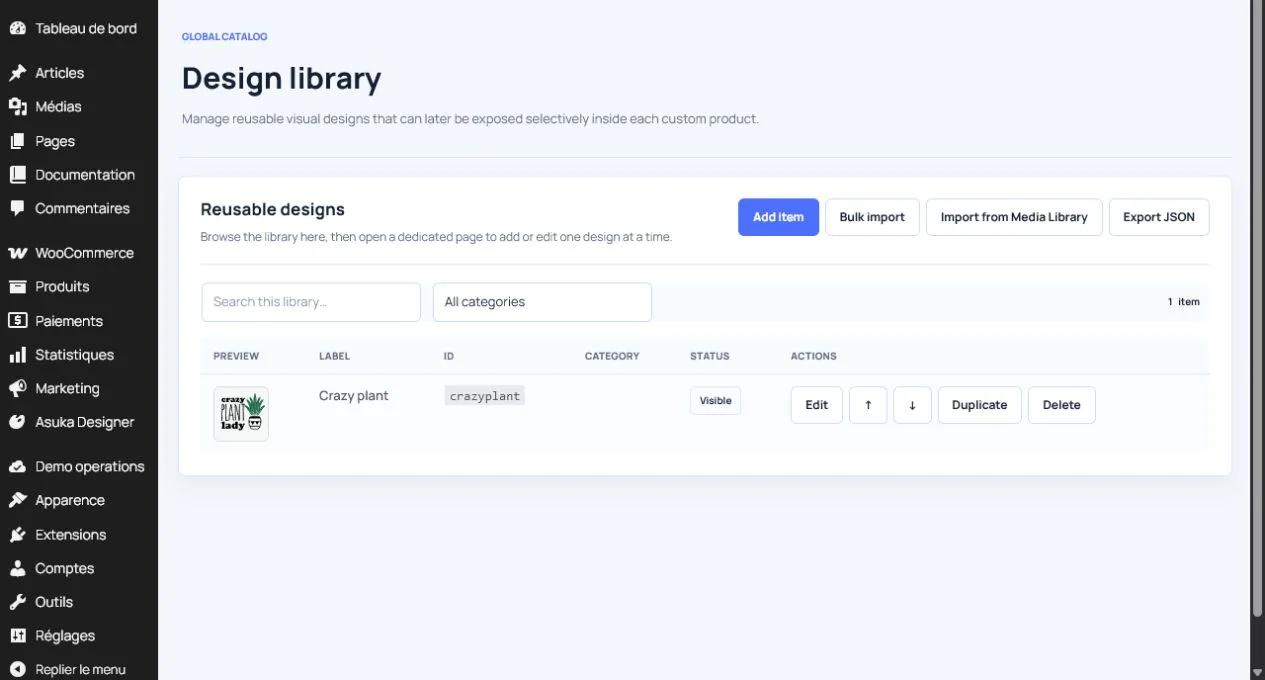
- Enter a stable ID and public label.
- Choose a meaningful category.
- Set an optional extra price.
- Select the raster or sanitized SVG asset URL.
- Add a useful description.
- Enable visibility only when the asset is ready for customers.
Create a shape
Where to go: Assets > Shape library > Add shape
- Choose SVG shape, rectangle preset, or circle preset.
- For SVG, provide the source URL or a supported path and correct viewBox.
- Set default fill, stroke, category, and optional extra price.
- Keep SVG scripts, external executable references, and unsafe markup out of the file.
- Test recoloring and scaling in the customer designer.
Organize and maintain the catalog
- Use short public labels and consistent categories.
- Duplicate an entry before creating a close variant.
- Hide an asset before deleting it from a live catalog.
- Search and filter large libraries rather than creating separate configurations.
- Export JSON before bulk changes.
Avoid this: Deleting an asset does not rewrite historical orders. Keep production files required to fulfil existing orders.
Expose assets per product
Where to go: Product configuration > Catalog filters
- Select only assets suitable for the product and production method.
- Confirm the assigned template includes the relevant Designs or Shapes module.
- Confirm client permissions allow viewing and adding the asset type.
- Test the empty state when no asset is selected.
Need to verify the result?
Run Asuka Designer > QA & Diagnostics, then repeat the customer workflow in a private browser window.