
Asuka Product Designer
3D Product Configurator
Let customers rotate a product and explore artwork, colors and materials. Try the Asuka Product Designer 3D configurator on a live WooCommerce demo.
See the product from every angle
Give your customers a new perspective.
Let shoppers turn the product, inspect its surfaces and explore the choices you offer. Asuka Product Designer connects the 3D preview to the product configuration and the WooCommerce order.
Explore the live demos without an account.
A practical workflow
Prepare the model. Let customers explore.
-
Start with your 3D model
Import a suitable GLB/glTF model, connect its parts to product elements and set up useful camera views.
Prepare a 3D configuration -
Choose the available options
Offer the colors, materials and editing tools relevant to your product. Advanced controls depend on the modules enabled for your plan.
Connect your WooCommerce product -
Carry the selection into the order
Customers inspect the result, then add the configured product to the cart. Your team retrieves the saved choices and preview with the order.
Review orders and files
Try it on a real product
Explore artwork and product variations.
These demos show different configurations. Some use optional paid modules.

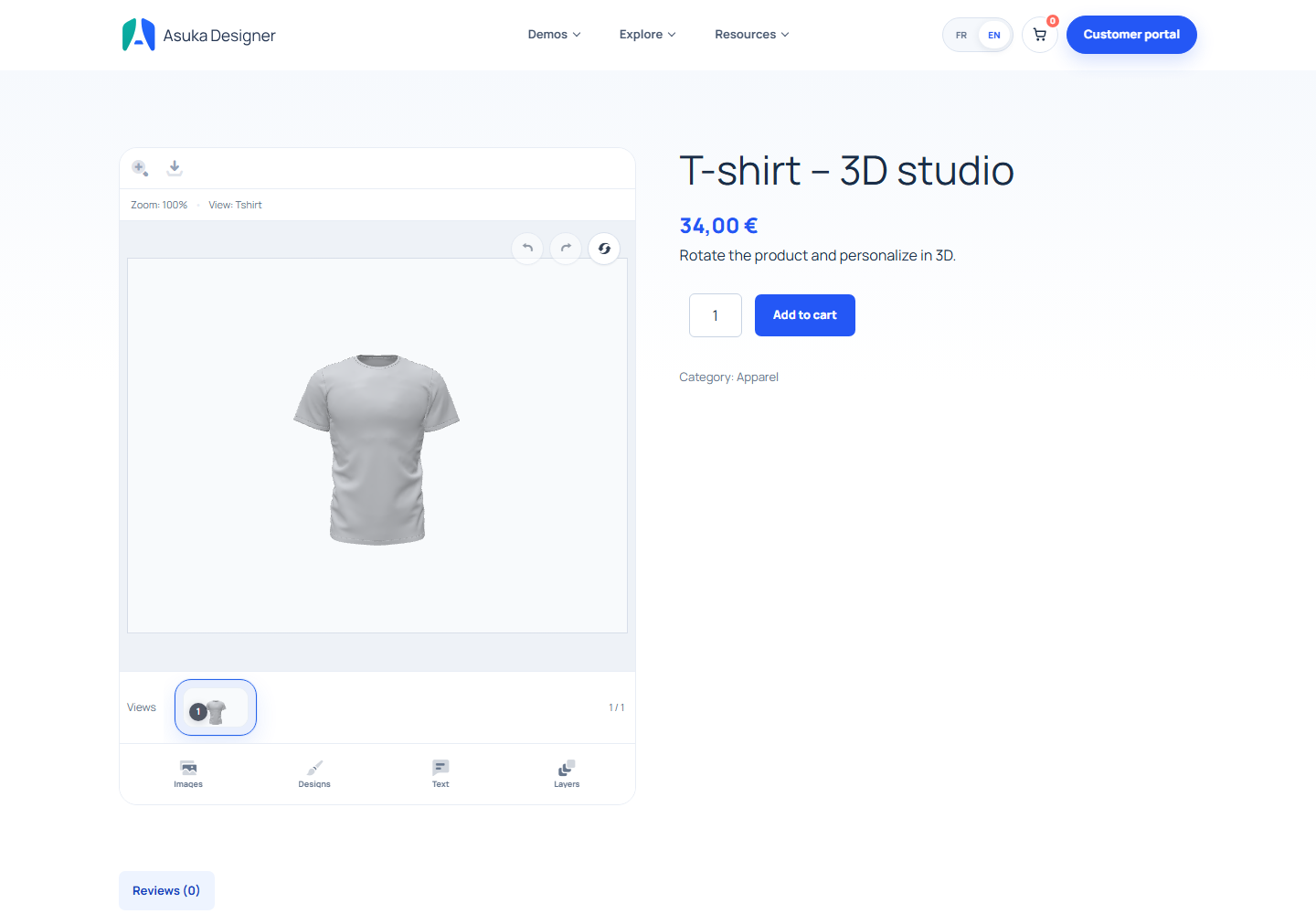
The 3D T-shirt studio
Rotate the garment and explore text or artwork on the available surfaces.
Try this demo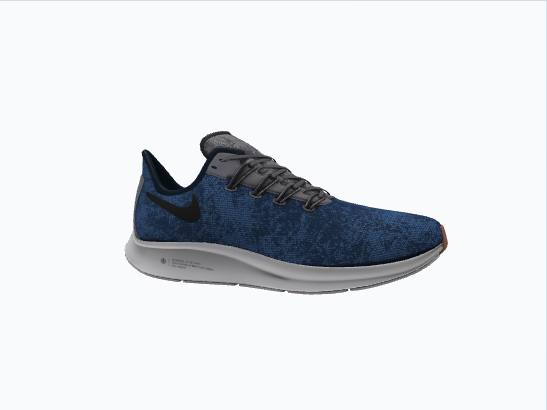
Colors and materials in 3D
Use the footwear demo to see how different product parts respond to the available options.
Try this demoBefore you get started
The details that matter to your store.
The WordPress.org plugin includes core 2D and 3D editing without a paid license. Drawing Areas starts with Starter; advanced modules and eligible server exports depend on your plan.
Compare features and plansDo I need a 3D model of my product?
Yes. A 3D experience starts with a suitable GLB/glTF model. You configure its parts, materials, views and available tools in the product builder.
Can I use 2D and 3D products in the same store?
Yes. The core supports both types of product views. You can choose the presentation that fits each item in your catalog.
Does a 3D preview replace a production file?
No. The preview helps customers inspect the result. The 3D download tools offer a PNG preview and scene JSON; production requirements and eligible server exports must be checked for your configuration and plan.
Your product, your setup
Try the merchant side, too.
Request a free, private WordPress sandbox for 24 hours. Explore product setup, the editor and the WooCommerce workflow.