
Documentation
Colors and Printing Methods
Build production-aware palettes with compatibility, defaults, labels, references, and price adjustments.
Colors are not only screen swatches. A production catalog connects the customer choice to a printing method, production reference, availability rule, and optional charge.
Who this is for
Production managers and catalog administrators
What you will achieve
Customers can select only color and printing-method combinations that the business can manufacture.
Before you begin
- List the supported printing processes.
- List production color references.
- Decide which choices add cost.
Create printing methods first
Where to go: Assets > Colors and printing > Printing methods
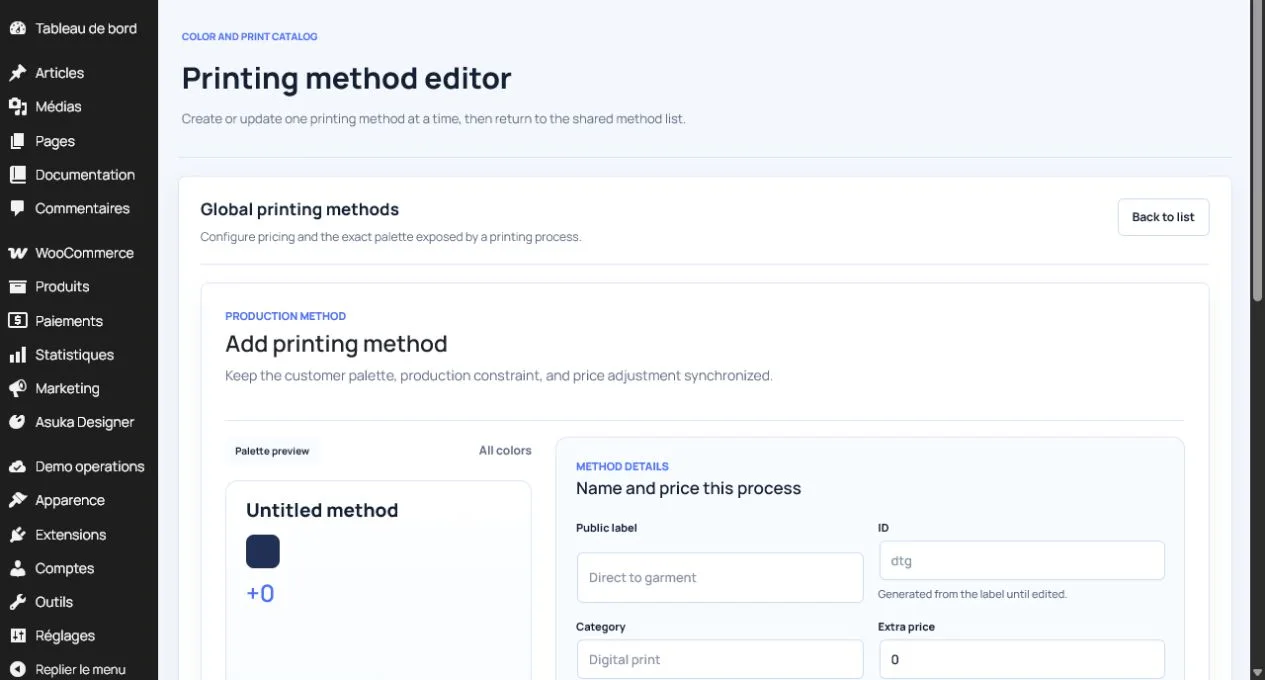
- Enter a public label and stable ID.
- Choose a category such as Digital print or Embroidery.
- Set the base extra price for using the method.
- Describe the process in customer-friendly language.
- Select the compatible color palette.
- Enable visibility when ready.
Tip: Creating methods first lets the color editor display the real compatibility list.
Create a color
Where to go: Assets > Colors and printing > Colors
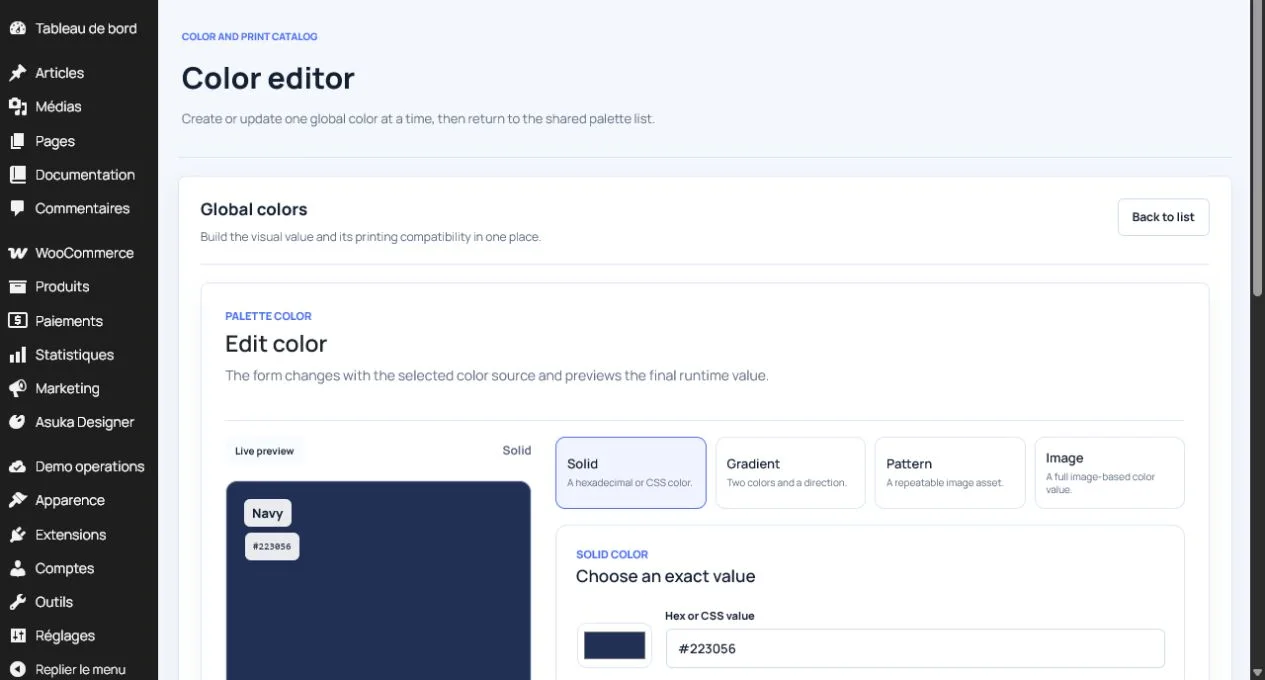
- Choose a solid or supported non-solid color type.
- Enter the exact display value.
- Set the public label, stable ID, and optional group.
- Set an extra price when applicable.
- Select compatible printing methods.
- Choose whether this is the default color.
- Enable visibility.
Understand compatibility
Compatibility is shared in both directions. Saving a printing method updates its color palette; saving a color updates its available methods.
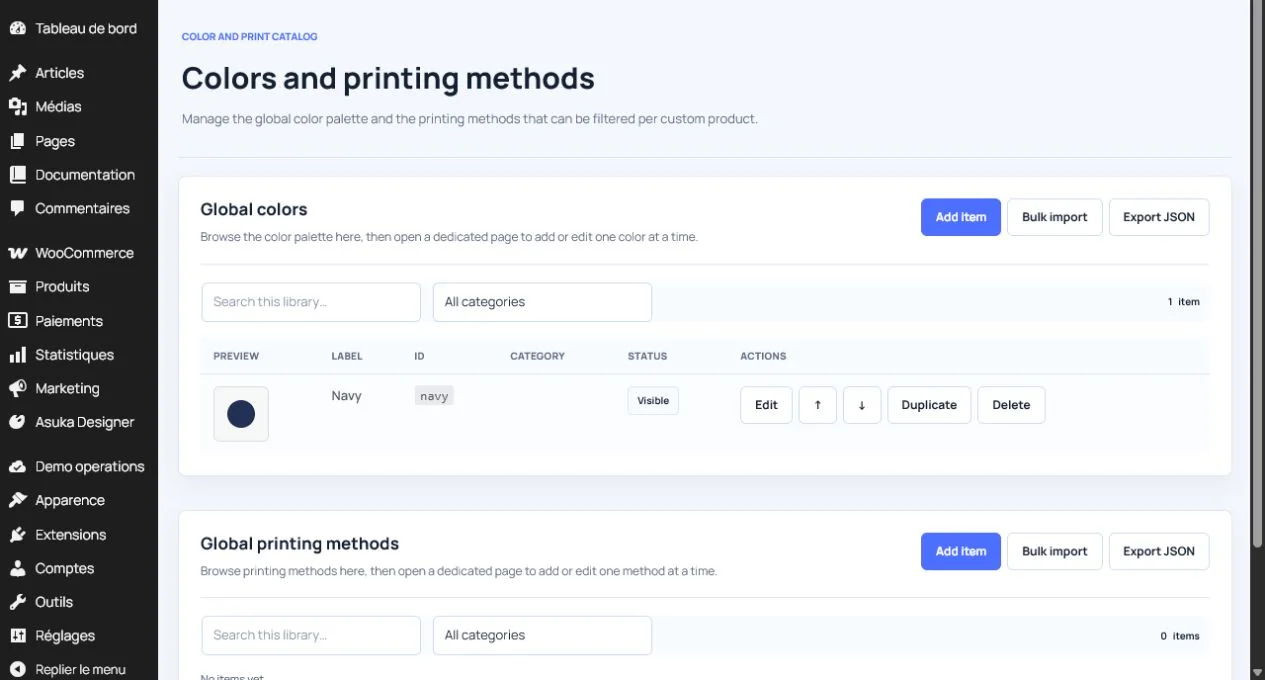
- Do not expose a color for a method that cannot reproduce it.
- Use groups to make large palettes easier to browse.
- Test method changes and confirm the color list updates.
- Test color changes and confirm pricing uses the active compatible method.
Avoid this: A color extra price is charged only when that color is compatible with the printing method used by the layer.
Filter palettes per product
Where to go: Product configuration > Catalog filters
- Select the printing methods the product supports.
- Select the related colors.
- Set a sensible default combination.
- Hide global catalog entries that are inappropriate for this product.
Test customer and production behavior
- Change printing method and inspect available colors.
- Change color and inspect the price breakdown.
- Switch views and confirm the choice remains synchronized.
- Add the design to the cart and compare the server pricing snapshot.
- Inspect the order and production pack for method and color identifiers.
Need to verify the result?
Run Asuka Designer > QA & Diagnostics, then repeat the customer workflow in a private browser window.