
Documentation
Administration Tour
Understand every Asuka Designer menu and know which workspace to open for each task.
This tour explains the purpose of every visible menu and the focused workspaces opened from them. Read it once before configuring products; it prevents catalog data, product rules, and store settings from being mixed together.
Who this is for
Administrators, catalog managers, and support teams
What you will achieve
You can identify the correct workspace for setup, product building, shared assets, commerce, documentation, settings, and diagnostics.
Before you begin
- The plugin is active.
- Your WordPress account has the manage_asuka_designer capability.
Overview
Where to go: Asuka Designer > Overview
Overview is the operational home screen. It summarizes readiness without replacing the detailed editors.
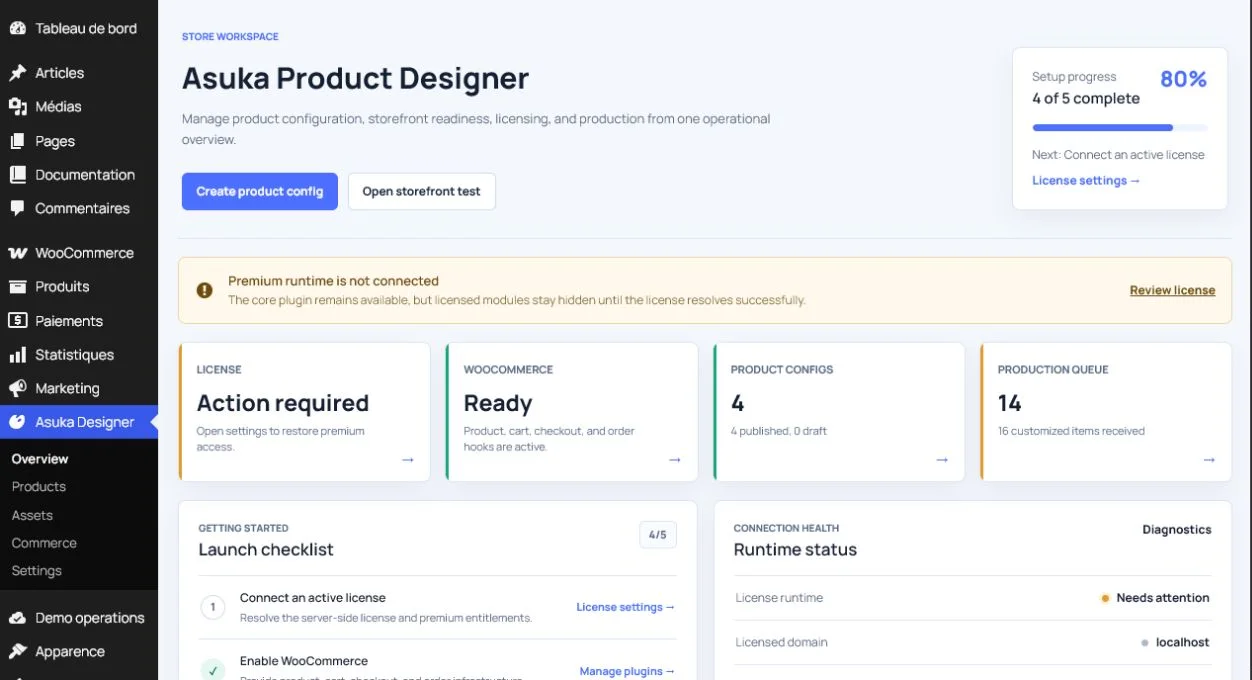
- Store status shows license, WooCommerce, configurations, and production health.
- Launch checklist highlights the next incomplete setup action.
- Runtime status shows the active license runtime, licensed domain, plan, and add-ons.
- Recent configurations provides quick access to products currently being built.
- Quick access opens assets, commerce, settings, diagnostics, and supporting tools.
Tip: Begin every support session on Overview, then open QA & Diagnostics before changing data.
Products
Where to go: Asuka Designer > Products
Products contains product configurations and product templates. A configuration describes one sellable customization experience; a template reuses a module layout and frontend behavior.
- Create, duplicate, publish, draft, or archive product configurations.
- Open the visual Product builder for 2D and 3D views.
- Configure client permissions, validation guards, catalog filters, pricing rules, templates, and pagination.
- Use product templates to share a workspace across several configurations.
Avoid this: A WooCommerce product and an Asuka product configuration are different records. They become connected only through product binding.
Assets
Where to go: Asuka Designer > Assets
Assets is the shared catalog used by product configurations.
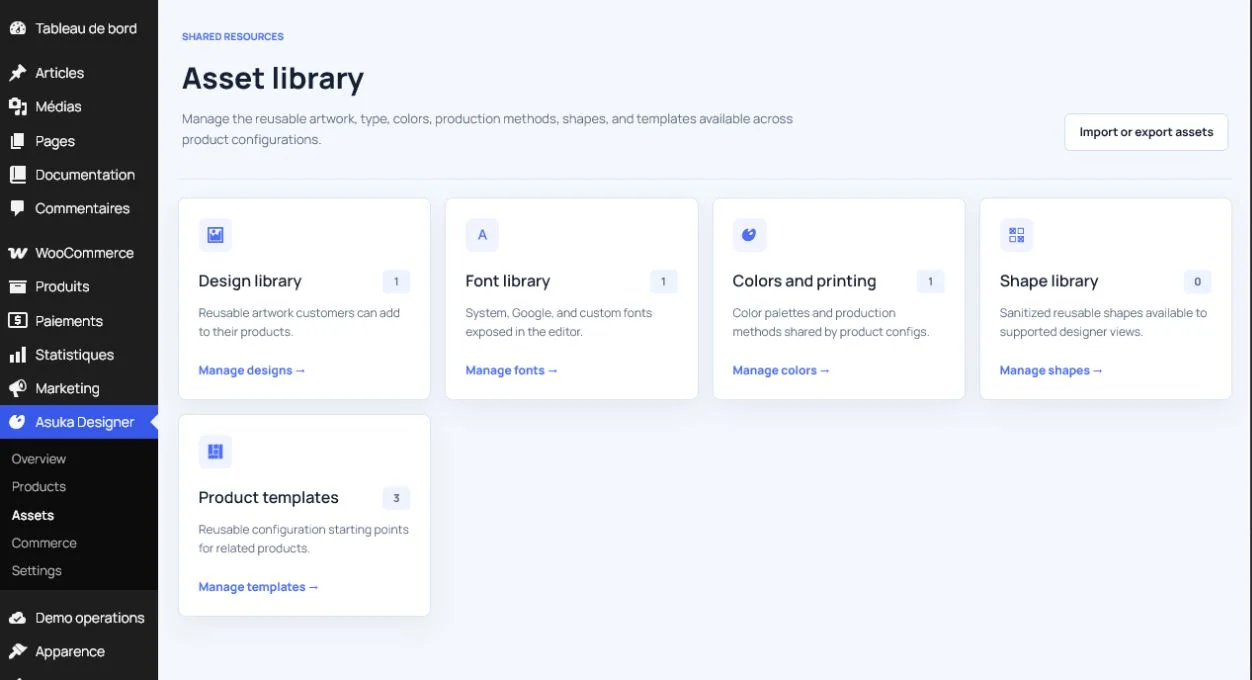
- Design library: reusable raster and SVG artwork.
- Font library: system, Google, and self-hosted typography.
- Colors and printing: customer colors, production methods, compatibility, and price adjustments.
- Shape library: reusable geometric presets and sanitized SVG paths.
- Product templates: reusable module layouts and frontend behavior.
Success check: An asset marked visible can be selected by a product filter and exposed to the runtime.
Commerce
Where to go: Asuka Designer > Commerce
Commerce groups the workspaces that connect customization to selling and fulfilment.
- WooCommerce products opens products that may be bound to configurations.
- Production orders lists customized order items and their internal status.
- Saved customer designs contains persisted customer work and resume links.
- Pricing rules opens the licensed visual rule catalog when available.
Documentation and Settings
Where to go: Asuka Designer > Documentation or Settings
Documentation explains workflows. Settings changes plugin-wide defaults and integrations.
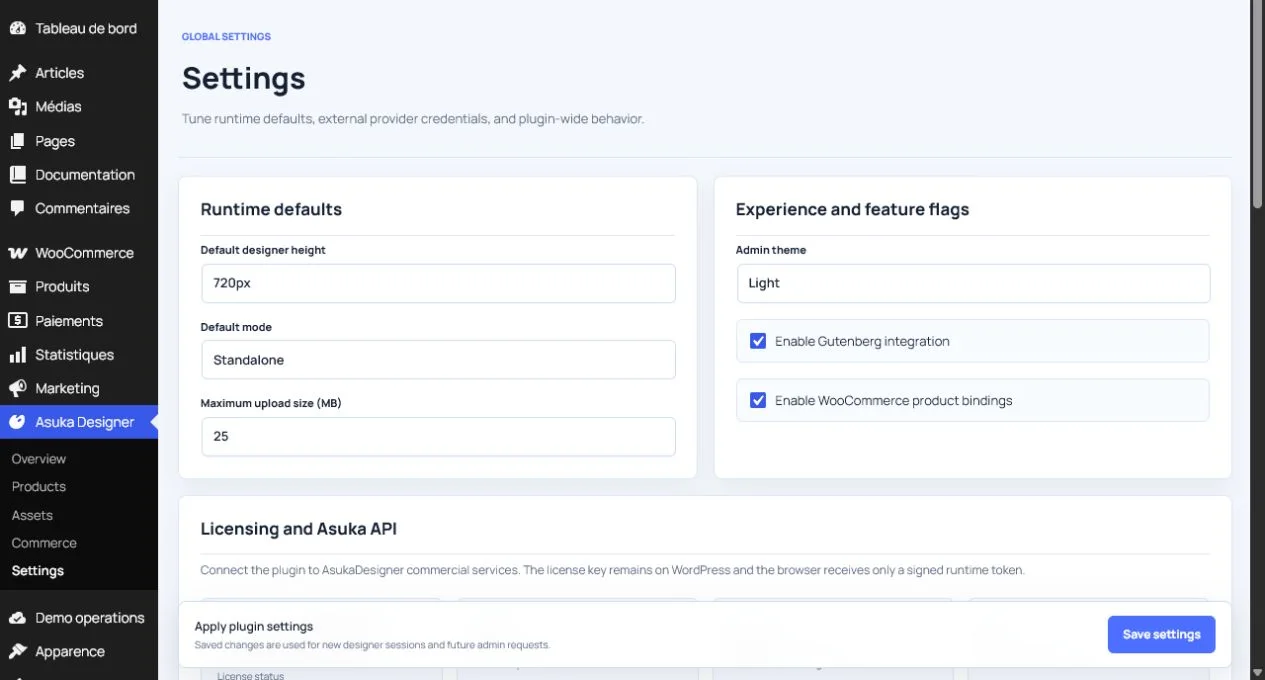
- Use Documentation for guided procedures and troubleshooting.
- Use Settings for runtime height, mode, upload limit, admin theme, feature flags, licensing, providers, and data retention.
- Save Settings only after checking which values affect all future sessions.
Focused workspaces opened from hubs
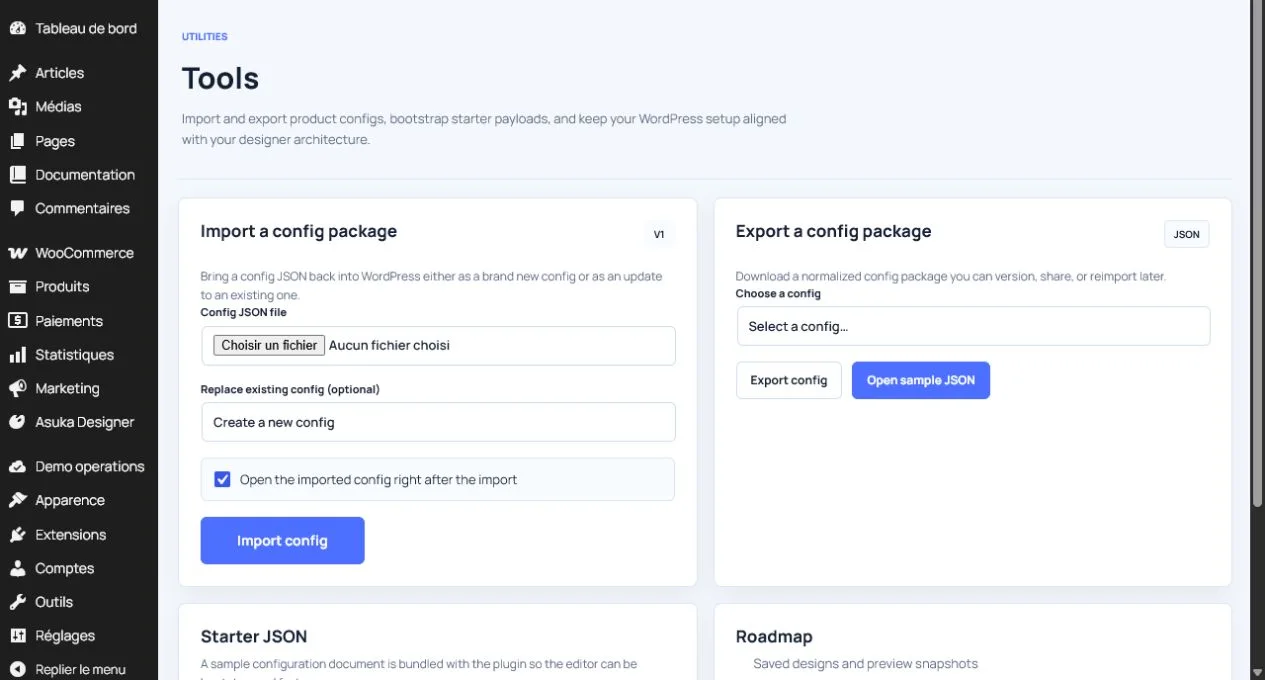
Some screens are intentionally not permanent sidebar items. They are opened from the appropriate hub to keep the main menu concise.
- Font, design, color, printing-method, shape, and pricing-rule editors.
- Translations for JavaScript runtime labels.
- Tools for configuration package import and export.
- Production for customized order fulfilment.
- QA & Diagnostics for runtime and data health.
- Designer Studio for image and SVG effects.
Tip: Bookmarking a focused URL is safe for administrators, but teach users to enter through Assets or Commerce so they keep the surrounding context.
Need to verify the result?
Run Asuka Designer > QA & Diagnostics, then repeat the customer workflow in a private browser window.